
Predator IIoT Service™ Software Installation
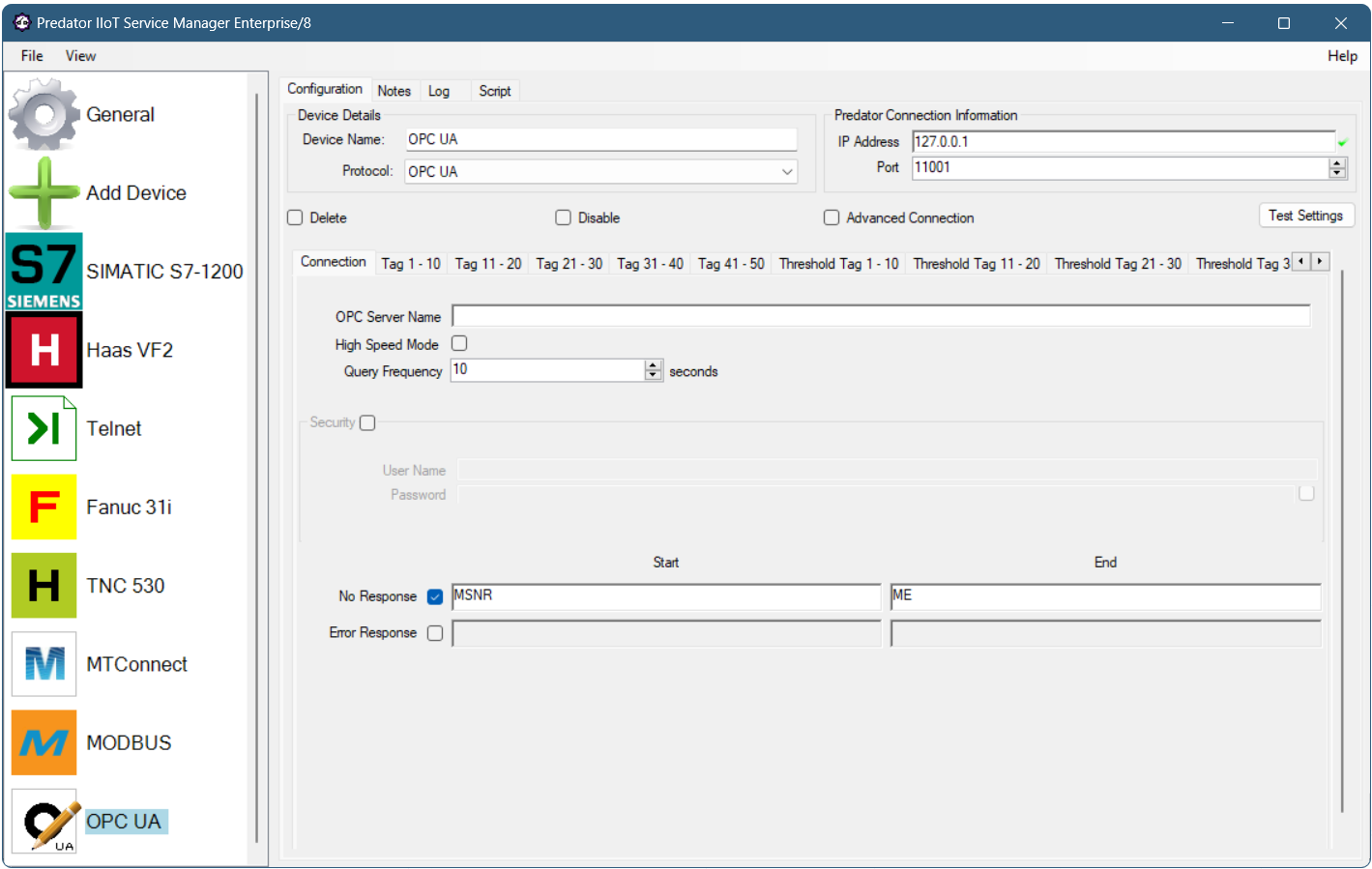
Download style Installation for Predator IIoT Service
Step through the following process to install Predator IIoT Service software via download:
- Request a license and obtain the ZIP password
- Logon to Windows at the PC or use RDP via mstsc.exe /admin
- Download the latest version of Predator IIoT Service
- The download may take a minute to complete
- Within your browser, click on piiotservice12.exe, select Show in Folder and a Windows Explorer window will appear
- Shift+Right Click on piiotservice12.exe and select Run as administrator
- If a UAC prompt asks, Do you want to allow this app to make changes to your device? Select Yes
- Optionally specify Windows administrator credentials and click Ok
- When prompted for a ZIP password, type it in and click Ok to start the installation
- Step through the installation screens until it is finished and a Predator IIoT Service icon appears on the desktop
- Click or double click on the purple Predator IIoT Service desktop icon to run the application
NOTE: If installing on a Windows Server OS, uncheck the optional Microsoft .Net Framework package.
NOTE: If a previous version of Predator IIoT Service is already installed, make a backup of your data and Uninstall prior to stepping through the above process. Should a licensing error be displayed, review the Licensing self help support page. Should install errors occur during the installation, close all open applications other than this browser window and repeat the installation.
DVD style Installation for Predator IIoT Service
Step through the following process to install Predator IIoT Service software via DVD:
- Logon to Windows at the PC or use RDP via mstsc.exe /admin
- Insert the Predator DVD into your PC's DVD drive
- When Windows Autorun is enabled, the Predator DVD window will appear
- Click Install Predator IIoT Service and skip ahead to step 7
- When Windows Autorun is disabled, run Windows Explorer and select the DVD drive
- Shift+Right Click on SetupService.exe and select Run as administrator
- Optionally specify Windows administrator credentials and click Ok
- Step through the installation screens until it is finished and a Predator IIoT Service icon appears in the desktop
- Click or double click on the purple Predator IIoT Service desktop icon to run the application
NOTE: If installing on a Windows Server OS, uncheck the optional Microsoft .Net Framework package.
NOTE: If a previous version of Predator IIoT Service is already installed, make a backup of your data and Uninstall prior to stepping through the above process. Should a licensing error be displayed, review the Licensing self help support page. Should install errors occur during the installation, close all open applications other than this browser window and repeat the installation.
More Self Help Articles
130+ Self Help Articles covering a wide range of technical details, references and processes are available on this web site to help support and troubleshoot Predator application issues.